![Seer Logo White.png]](https://knowledge.seerdata.ai/hs-fs/hubfs/Seer%20Logo%20White.png?height=50&name=Seer%20Logo%20White.png)
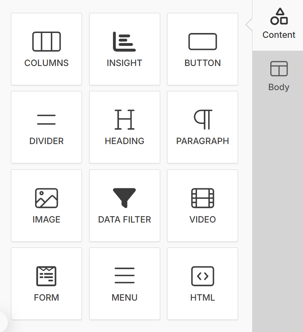
All available content blocks are located in the Content tab within the editor. From here, you can click, hold, and drag blocks onto your Dashboard canvas.
Adding and managing content blocks
Adding a block
-
Drag a content block from the Content tab onto the Dashboard canvas, or
-
Click a content block to add it directly
Once a block is added, the block configuration panel will appear on the right-hand side of the editor.
Configuring a block
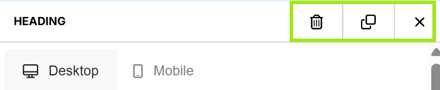
When a block is selected, the configuration panel allows you to:
-
Edit the block’s properties (these vary by block type)
-
Duplicate the block
-
Delete the block
To close the configuration panel for the selected block, click the X in the top-right corner of the editor.
Repositioning and organising blocks
-
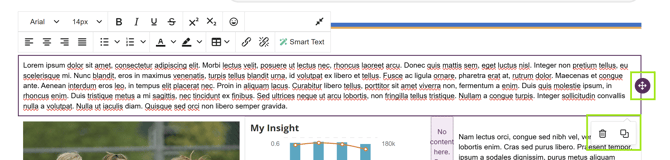
Move blocks by dragging the reposition icon on the block
-
Duplicate or delete a block using the icons shown on the block itself
-
When a row is selected, use the + buttons above or below it to insert a new row of content
Reorganising a content block:
Reorganising a whole content row:

Content block types
Columns
Columns are the foundation of your layout.
-
Each new row contains a Columns block
-
Columns can be configured to have equal or custom widths
-
Resize columns by dragging the divider between them
-
Other content blocks must be placed inside columns

Button
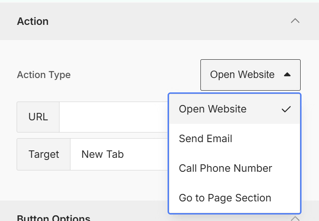
Buttons are typically used for navigation or calls to action.
Buttons can link to:
-
A website
-
An email address
-
A phone number
-
An anchor point within the Dashboard
Use the Target setting to choose whether the link opens in the same tab or a new tab.
Divider
Dividers create visual separation between content sections.
-
Thickness and colour can be customised
Heading
Headings help structure your content and improve accessibility.
-
Choose from hierarchical levels (H1, H2, H3, etc.)
-
Font sizes can be adjusted to suit your style guide
-
Different display sizes can be set for desktop and mobile
HTML
The HTML block allows you to insert custom HTML directly into your Dashboard.
Image
The Image block allows you to:
-
Upload an image file, or
-
Paste a publicly accessible image URL
Once added, adjust the image width using the slider. Width is measured as a percentage of the column the image sits within.
Menu
The Menu block creates a group of buttons for navigation.
-
Menus can be displayed horizontally or vertically
-
Links can point to web pages or anchor sections within the Dashboard
Text
Text blocks are used for paragraphs and explanatory content.
The text editor includes tools to:
-
Add links
-
Adjust font size and colour
-
Apply bold, italic, and other formatting
Video
The Video block allows you to embed videos by pasting a YouTube or Vimeo URL.
Insight
The Insight block lets you embed Insights from the platform directly into your Dashboard.
➡️Learn more about configuring Insight blocks here.
Data Filter
The Data Filter block allows viewers to filter the data shown across all embedded Insights on the Dashboard.
➡️Learn more about Data Filters in this article.
Forms
The Forms block lets you embed a customisable form into your Dashboard.
You can:
-
Add multiple field types
-
Collect responses from viewers
-
Download submitted responses in CSV format
Before using Forms for the first time:
-
Open the Actions menu in the Dashboard editor
-
Select Allow form submissions
➡️Learn more about embedding Forms into Dashboards here.
Why this matters
Using the right mix of content blocks helps you create Dashboards that are clear, accessible, and purposeful — combining data, narrative, and interaction in one place.