![Seer Logo White.png]](https://knowledge.seerdata.ai/hs-fs/hubfs/Seer%20Logo%20White.png?height=50&name=Seer%20Logo%20White.png)
What is the Analysis Tool?
The Analysis Tool is a powerful feature that helps you quickly identify the top or bottom records for any data variable or category.
For example, the Analysis tool can automatically find and sort your table into "the top 3 values" or "the bottom 5 values", and just show those.
How to use the Analysis Tool?
-
Check Your Data: Ensure the variables you want to analyse (what you are measuring and want to sort such as "Scores", "Number of people", "Rate of completion") are present in your table's columns. If not, update the table structure before proceeding.
-
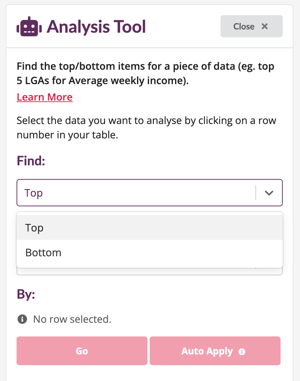
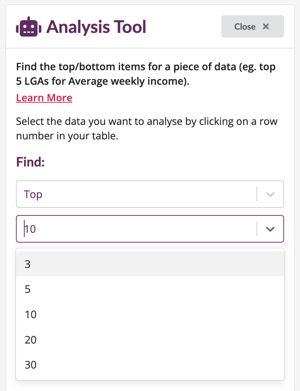
Select Top or Bottom Items: Choose whether you want to analyse the "Top" or "Bottom" items and specify the number of records you want to focus on.
-
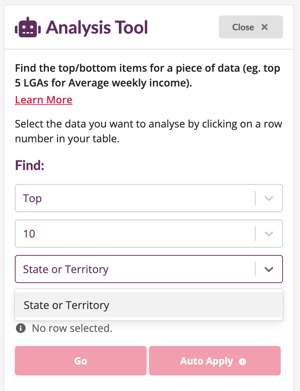
Choose Your Variable: From the third dropdown menu, select the variable you want to analyse. If your variable isn't listed, close the Analysis Tool and update your table structure.
-
Select Your Data: Click the row number in your table that corresponds to the data you want to analyse.
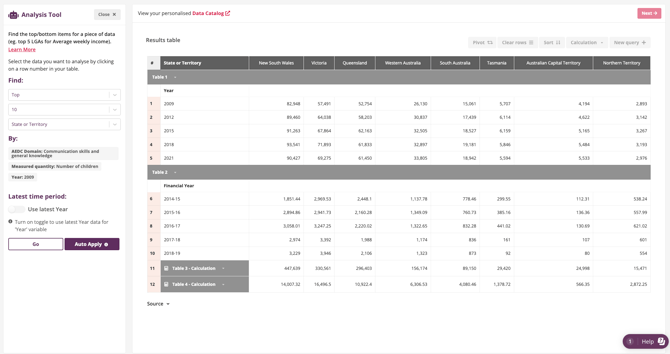
- Run the Analysis: Click "Go" to generate a table with the results based on your selections.
Working with Auto Refreshing Insights
If your Insights are set to Auto Refresh, you can use the "Auto Apply" feature to dynamically update your data whenever the underlying dataset is updated.
-
If a Range compatible Time Variable (such as “Year”, “Date”, “Year Month”, “Year Ending”, “Year Quarter”, or “Financial Year”) exists in the selected row, you can toggle on the option to use the latest time.
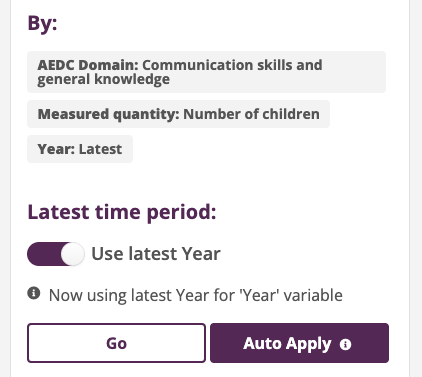
- After selecting your options in all dropdowns, click "Auto Apply" to enable dynamic updates.
- Once an analysis query is applied, the table becomes locked for editing. To make changes to the table, click "Unlock Editing" to remove the analysis tool query.
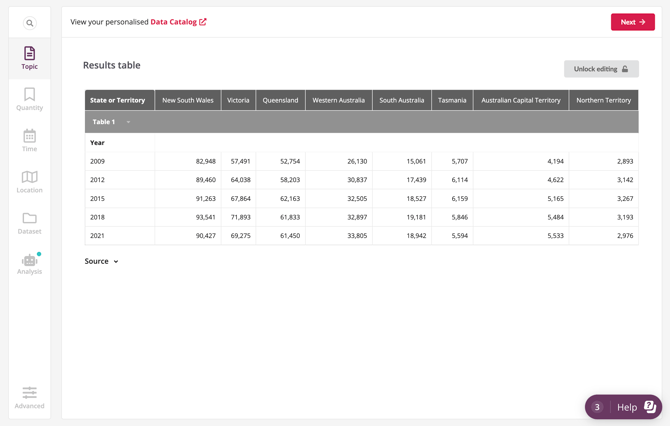
➡️Learn more about Auto Refreshing Insights.