![Seer Logo White.png]](https://knowledge.seerdata.ai/hs-fs/hubfs/Seer%20Logo%20White.png?height=50&name=Seer%20Logo%20White.png)
What this feature does
Seer Data's AI Insight Summaries help you quickly turn Insight data into a clear, human-readable explanation. Instead of manually writing summaries, you can generate a draft using generative AI — then review, edit, and save it in your own words.
This feature is designed to make Insights easier to understand, share, and discuss, especially with non-technical audiences.
Who can use it
You can generate an AI summary if you:
-
Are on a paid plan
-
Have Edit access to the Insight
Standard (free) users cannot access this feature.
How to generate a summary
-
Open an Insight.
-
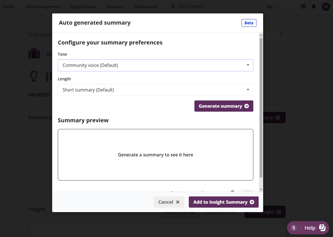
Select Generate summary.
-
Choose:
-
Tone (the summary voice and writing style)
-
Length (how detailed the summary should be)
-
-
Select Generate summary.
The summary usually appears within 5–10 seconds when using the default configuration. Longer summary generation times can be experienced for longer Length selections and more complex Insight data.
Tone options (Voice & style)
Choose the voice that best fits your audience:
-
Community voice (default)
Warm, inclusive, plain language, focused on community impact. -
Easy read
Very simple language, short sentences, minimal numbers. -
Neutral analytical
Clear, factual, data-driven explanation. -
Policy & program lens
Highlights implications for services, policy, or programs.
Length options
Choose how detailed the summary should be:
-
Brief breakdown (default)
Short overview with key points and one implication. -
Medium analysis
More context, trends, and subgroup highlights. -
Full analysis
Detailed narrative with patterns, differences, and caveats.
Reviewing and saving the summary
After the summary is generated, you can:
-
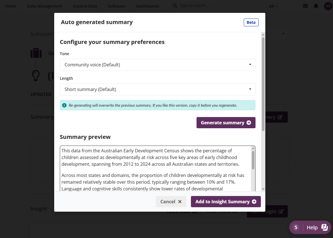
Read it before saving
-
Add it to the Insight summary
- Edit the text (edits are never sent back to the AI model)
-
Regenerate with different tone or length (this replaces the previous AI draft)
When you save:
-
The summary is stored with an audit trail (who generated it, when, and how)
-
The Insight owner is notified if someone else made the update
Auto-regenerating summaries
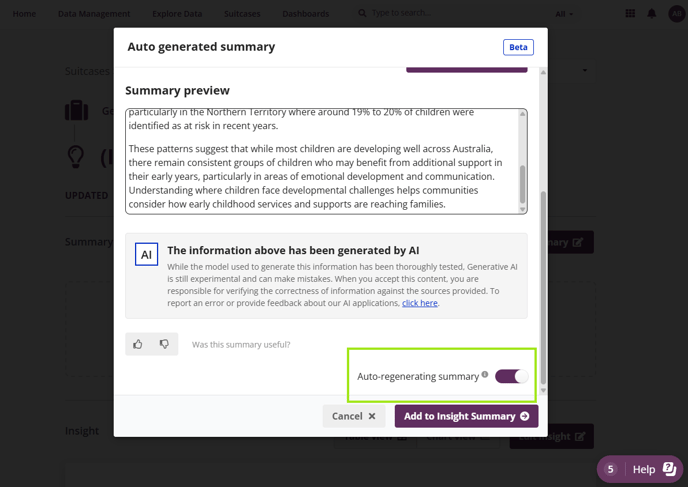
You can turn on Auto-regenerate summary if you want the summary to update automatically when Insight data changes.
Important to know:
-
Auto-regeneration overwrites the entire summary
-
Editing the summary manually turns auto-regeneration off
-
The Insight owner is notified when an auto-regeneration occurs
AI disclaimer
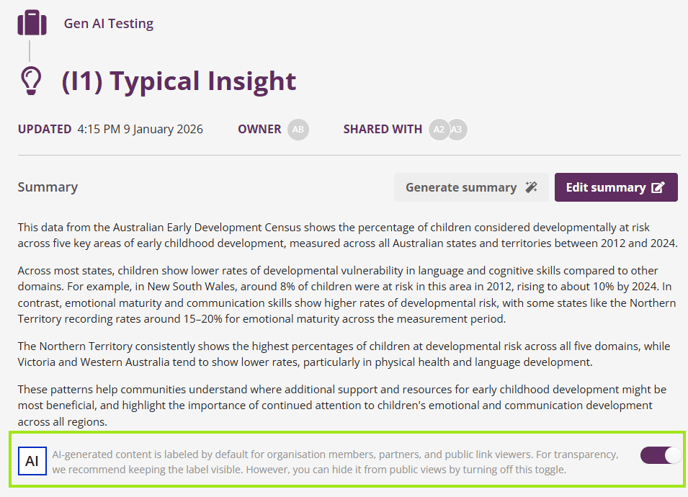
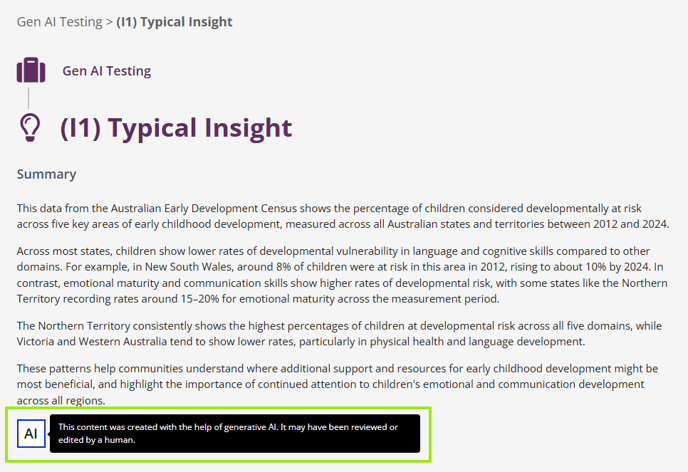
When an AI-generated summary is used, you can show a disclaimer:
“This content was created with the help of generative AI. It may have been reviewed or edited by a human.”
The disclaimer is only shown when AI has contributed to the summary, and you can choose to toggle it on or off for public views.
Internal View:
Public View:
Giving feedback
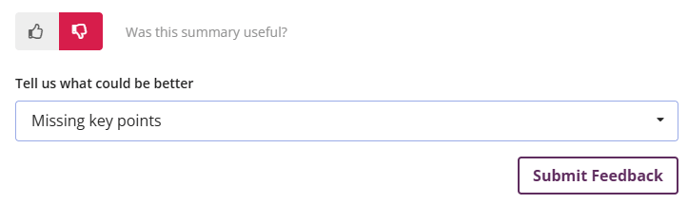
After generating a summary, you can give quick feedback using 👍 or 👎.
If you select 👎, you can tell us why (e.g. too vague, missing key points, hard to understand). This helps us improve future summaries.
Privacy, safety, and trust
Seer Data is governance-first by design.
-
No raw or identifiable data is sent to the AI
-
Only aggregated Insight data and metadata are used
-
All summaries are logged for audit and accountability
-
The AI is instructed to avoid speculation, bias, or harmful language
If the AI service is unavailable, you can still write or edit summaries manually.
If you need help interpreting a summary or deciding which tone to use, remember: the AI draft is a starting point and your judgement always comes first.