![Seer Logo White.png]](https://knowledge.seerdata.ai/hs-fs/hubfs/Seer%20Logo%20White.png?height=50&name=Seer%20Logo%20White.png)
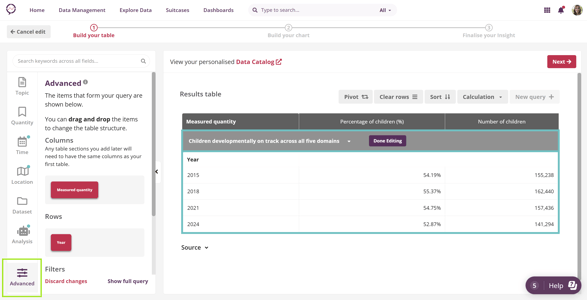
All table structure settings are managed from the Advanced tab, located at the bottom-left of the Explore Data tool.
Changing what is shown in the table
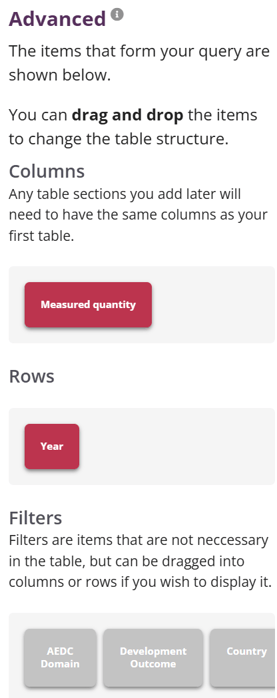
The table layout is controlled by three areas:
-
Columns — Categories displayed across the table
-
Rows — Categories displayed down the table
-
Filters — Categories available for use but not shown in the table
Categories that appear in Rows or Columns will be visible in the table.
Moving Categories between rows and columns
To change the table layout:
-
Drag a Category box between the Rows and Columns areas
-
The table will update automatically to reflect the new structure
This allows you to switch perspectives, such as viewing data by year across columns or by location down rows.

Reordering information
You can also control the order in which information appears:
-
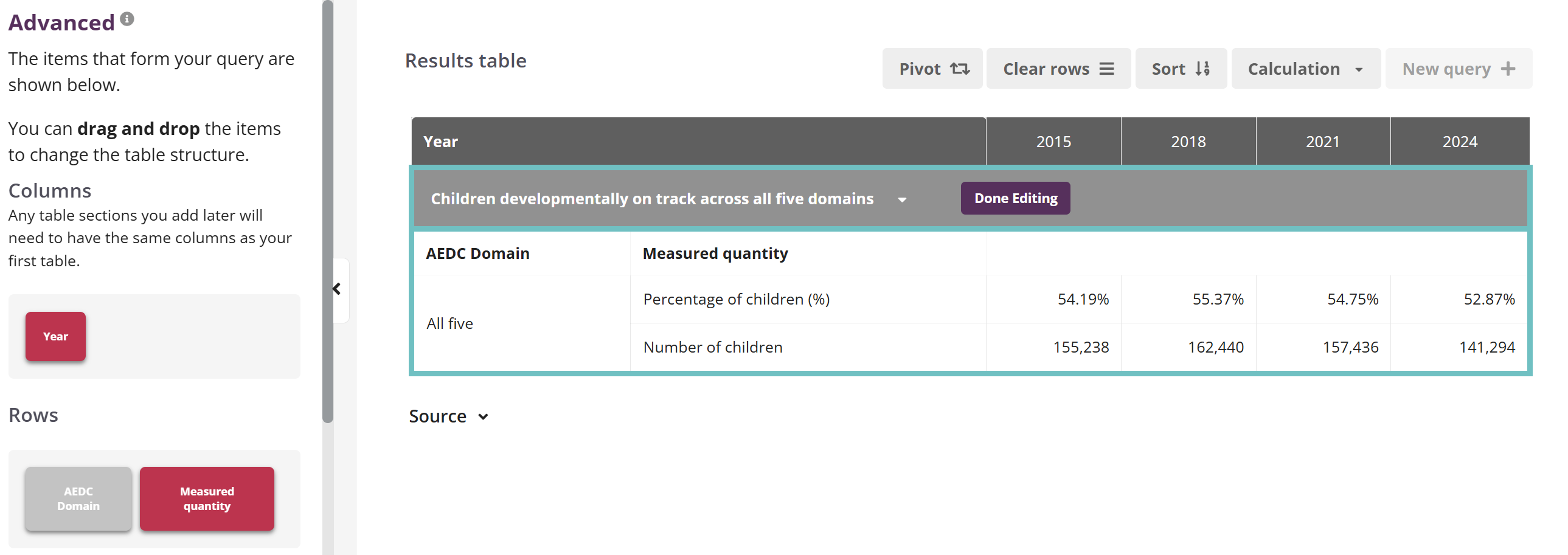
Drag Category boxes left or right within the Rows or Columns area
-
The order of the boxes determines the order of information in the table
For example, you may choose to display Measured Quantity before or after one of your Topic filters (in the below example, AEDC Domain), depending on what you want to emphasise.
Hiding information from the table
Not all available information needs to be shown at once.
-
Categories placed in the Filters area remain available for querying
-
While in Filters, they do not appear in the table
To hide information:
-
Drag a Category box from Rows or Columns into Filters
To show it again:
-
Drag the box from Filters back into Rows or Columns
Why this matters
Adjusting table structure helps you present data in the clearest possible way for your audience. By controlling layout and level of detail, you can focus attention on what matters most without changing the underlying data.