![Seer Logo White.png]](https://knowledge.seerdata.ai/hs-fs/hubfs/Seer%20Logo%20White.png?height=50&name=Seer%20Logo%20White.png)
Suitcase localisation allows you to bulk-update Variables and Categories across multiple Insights within a Suitcase. This includes updating geographic values so Insights reflect your own focus locations, such as specific LGAs, States, or statistical areas.
Localisation helps you reuse existing Insights while keeping them relevant to your context.
Before you start
To localise a Suitcase:
-
You must own the Suitcase you are localising.
-
If the Suitcase is pre-packed or shared with you by a partner, you’ll first need to duplicate it into your own space.
-
-
You must have access to the Datasets used by the Insights in the Suitcase.
For pre-packed Suitcases, the Suitcase description will explain which geographic variables and levels (for example LGA, State, SA2, SA3) are available for localisation.
Steps to localise a Suitcase
-
Navigate to the Suitcase you want to localise.
-
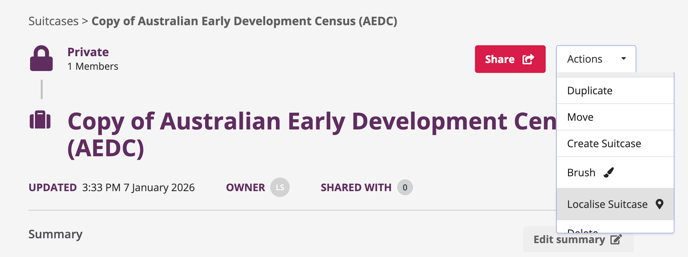
Open the Actions dropdown in the top-right corner.
-
Click Localise Suitcase.
-
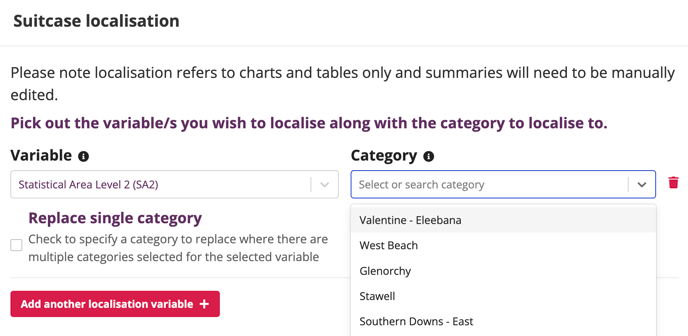
Choose the Variable or Variables you want to localise.
-
For geographic localisation:
-
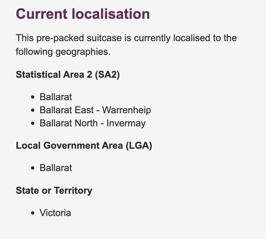
Confirm the geographic levels used by the Insights (e.g. LGA, State, SA2, SA3).
-
Select the locations you want to apply.
-
-
-
Complete all required localisation fields.
-
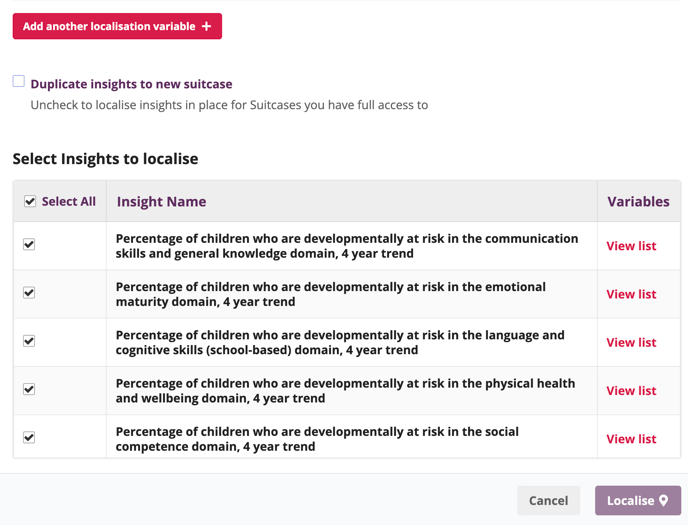
Click Add another localisation variable if you need to update more than one Variable.
-
-
Select the Insights you want to localise, or use Select all to include them all.
-
If you duplicated the Suitcase immediately before starting, you can uncheck Duplicate Insights to new Suitcase.
-
-
Click Localise to begin.
-
Review and confirm the action in the confirmation popup.
.png?width=688&height=259&name=image-from-clipboard%20(2).png)
After localisation
Once the process is complete:
-
A report will be emailed to you, confirming whether localisation was successful.
-
The report will include a link to your localised Suitcase
-
The report will list any Insights that could not be fully localised.
-
These can be reviewed and edited manually if needed.
-
Why this matters
Suitcase localisation makes it easier to adapt trusted Insights to new places and contexts without rebuilding them from scratch. By updating Variables in bulk, you can save time, reduce duplication, and keep Insights aligned with your local decision-making needs.