![Seer Logo White.png]](https://knowledge.seerdata.ai/hs-fs/hubfs/Seer%20Logo%20White.png?height=50&name=Seer%20Logo%20White.png)
What is embedded Insight click-through?
When embedded Insight click-through is enabled:
-
Viewers can click the Insight title on a Dashboard
-
The Insight will open in a new browser tab
-
This provides full access to the Insight layout and interactions
How to enable or disable embedded Insight click-through
To manage this setting:
-
Open your Dashboard.
-
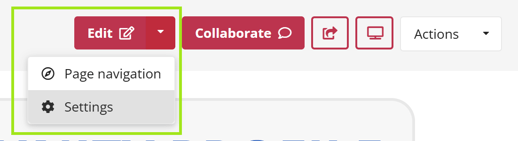
Click the dropdown arrow next to Edit.
-
Select Settings.
-
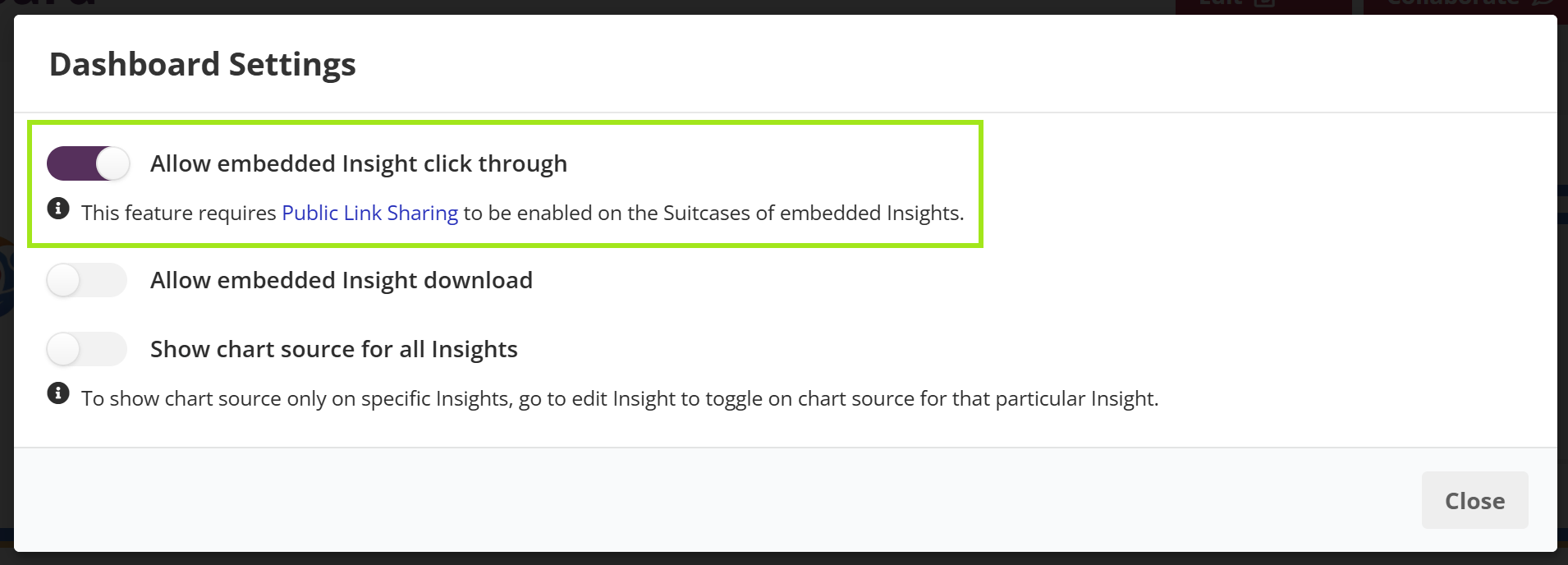
Use the toggle to enable or disable embedded Insight click-through.
-
Save your changes.
Important visibility requirement
⚠️ Public sharing must be enabled for this feature to work. Learn how to Share a Suitcase here.
For embedded Insights to open in a new tab:
-
The Suitcase containing each embedded Insight must have Public Link Sharing enabled
-
The Suitcase must be set to Anyone with the link can view
To check or update this:
-
Navigate to the relevant Suitcase
-
Click Share, or Actions → Manage Access
-
Confirm that Anyone with the link can view is enabled
If Insights come from multiple Suitcases, this setting must be applied to each relevant Suitcase.
Why this matters
Allowing Insights to open in a new tab gives viewers the flexibility to explore data in more depth without cluttering the Dashboard experience. Ensuring sharing settings are configured correctly helps Dashboards behave consistently for all audiences.