![Seer Logo White.png]](https://knowledge.seerdata.ai/hs-fs/hubfs/Seer%20Logo%20White.png?height=50&name=Seer%20Logo%20White.png)
Ways to share your Insights
You can share Insights in a few different ways, depending on how you want others to access or use them.
Note: You must own the Suitcase containing the Insights in order to share them with others. This means you created the Suitcase yourself or duplicated it into your own space.
1. Share via your Suitcase (public link)
From the Suitcase:
-
Click Share.
-
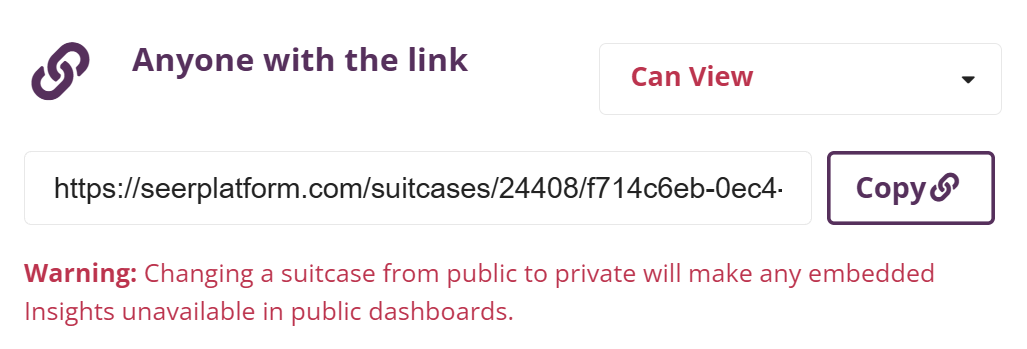
Enable Anyone with the link by selecting Can View from the drop down.
-
Copy the generated public link.
-
Share the link with your audience.
This creates a read-only public view of the Suitcase and its Insights.
2. Share by managing access to your Suitcase
You can invite others to view or collaborate on Insights by sharing the Suitcase they belong to.
To do this:
-
From the Suitcase, open the Actions dropdown.
-
Select Manage Access.
-
Invite members of your organisation and set their access level:
-
Read only — can view Insights
-
Full access — can edit Insights within the Suitcase
-
-
Save your changes.
Anyone with access to the Suitcase will be able to view (or edit, if permitted) the Insights it contains.
➡️Learn more about sharing Suitcases here
3. Download an individual Insight
You can also share Insights outside the platform by downloading them.
To do this:
-
Open the Insight you want to share.
-
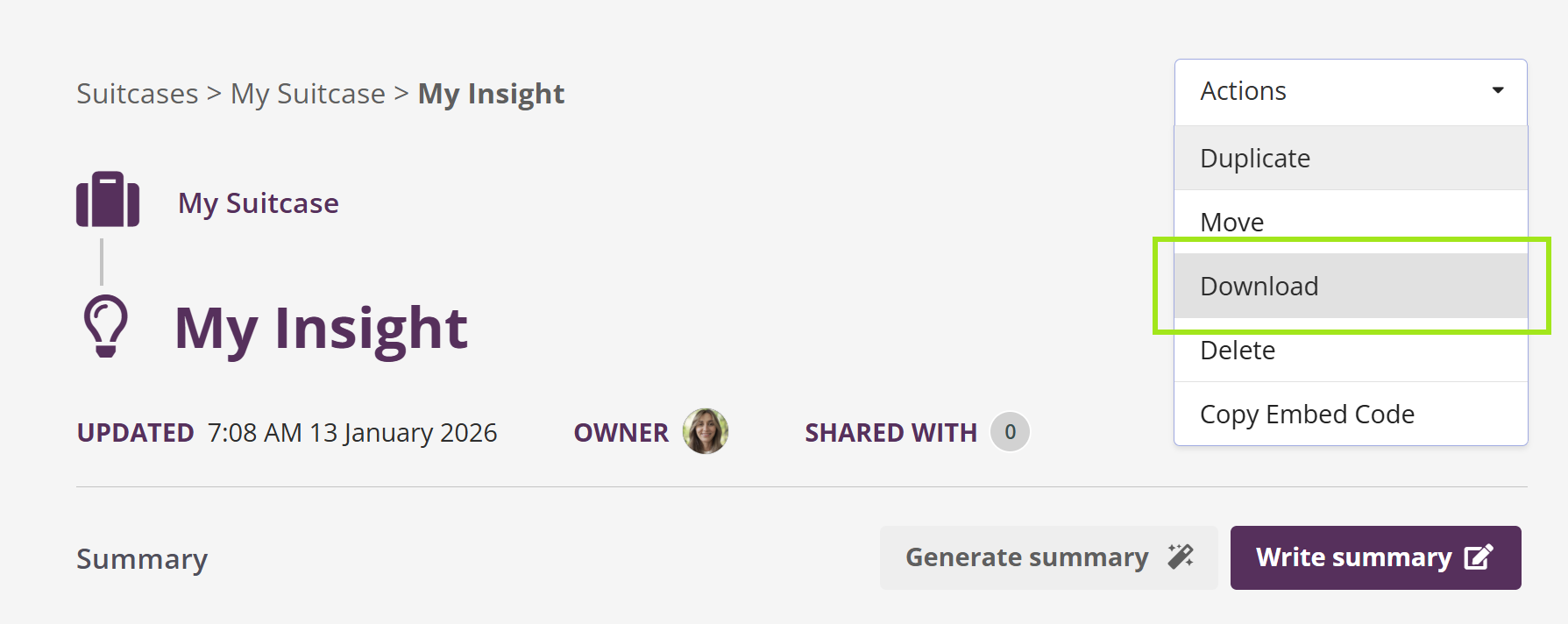
Open the Actions menu.
-
Select Download.
This exports the Insight in both:
-
Excel format (data), and
-
Image format (for reports, presentations, or emails)
4. Copy embed code (for public Suitcases)
For Insights that sit within a public Suitcase, you can embed an individual Insight into another digital environment.
This is useful when you want to display a live Insight in places such as:
-
A dashboard
-
Your organisation’s website
-
An internal intranet or portal
To copy the embed code:
-
Open the Insight you want to embed.
-
Open the Actions menu.
-
Select Copy Embed Code.
-
Paste the code into your external site or application within an HTML block.
The embedded Insight will reflect the public version of the data and update as the Insight changes.
Using comments to collaborate
Once an Insight has been created, you can use Comments to:
-
Leave notes for yourself
-
Ask questions or provide feedback to collaborators
Comments can be added to both Insights and Suitcases, keeping discussion close to the work being shared.
Why this matters
Flexible sharing options make it easy to collaborate, communicate findings, and reuse Insights across different contexts — while maintaining appropriate control over access and editing.