
How to create a form
- Navigate to Data Management
- Navigate to Create a Data Collection Form
- Select Create a Form
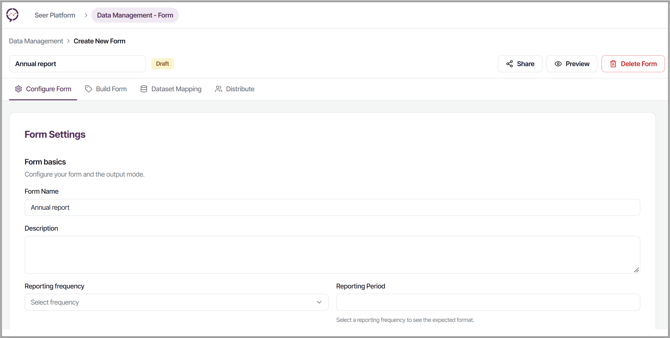
- You are automatically directed to Configure Form where you can configure the Form settings.
You can enter a:- Form Name
- Form Description
- Reporting Frequency (Year, Financial Year etc.) and Reporting Period (2027, 2027-28 etc.)
- Dataset Name
- Customised Thank You message to choose what respondents see after they submit the form.
Build Form
-
Navigate to Build Form
- Add section
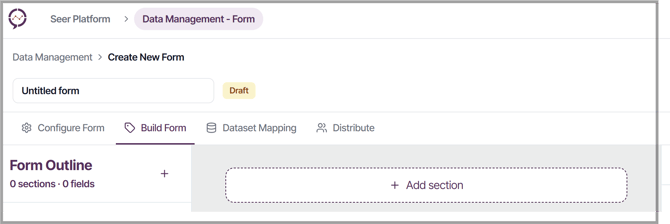
- Enter a section name
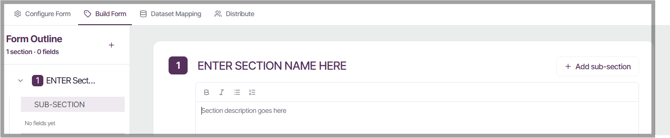
- Enter a section description to help contributors understand the purpose of capturing data for the section. You can format the text using the format menu at the top of the description box.
- Add sub-section and enter a sub section name. Each new section will sit across the top of the Form, whilst subsections divide content as you navigate down the Form. Sections and subsections are used to group related fields.
- To add a Form question or field, select Add field
Select from:- Short text
- Long text
- Number
- Radio Button
- Single Select Dropdown
- Scale
- Checkbox
- Multiselect Dropdown
- Yes/ No
- Date
- File upload
- Video upload
- URL
- Phone
- Postcode
- Calculation
- Matrix/Grid
- Text Block
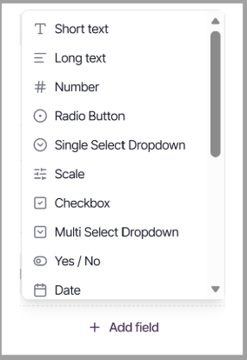
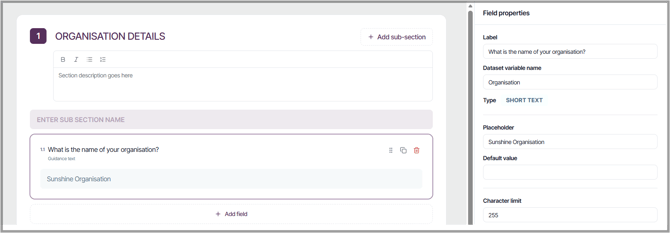
- When you add a field, you must review and update the Field Properties
These include:- Label: field title/ question text to be displayed
- Dataset variable name: variable name in dataset for creating Insights
- Type: field type (Short text, Long text, Number etc.)
- Placeholder: pre-populated value as example response
- Options: pre-populated responses made available for selection
- Default value: pre-populated value to submit as a response
- Unit: type of number (whole number, percentage, decimal)
- Guidance/ Description: text to provide additional context for responses
- Analysis type: indicates if the response data is to be included in the dataset as Quantitative or Qualitative data
- Sovereignty & PII (Personally Identifiable Information or personal information): allows Form builder to accurately identify and classify PII to comply with privacy regulations
- Conditional visibility: uses conditional logic to change visibility - the field will only be shown when a rule matches (that is, a particular value has been selected in another field)
- As you enter details into the Field properties in the right panel, the Form will be populated.
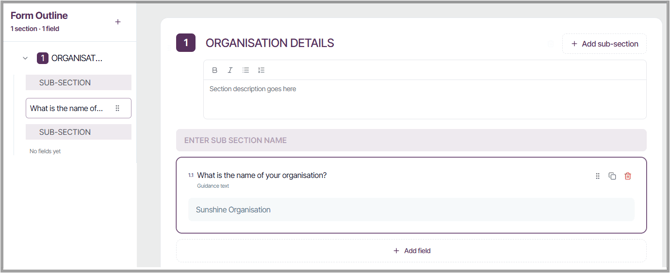
- Use the Form Outline (left panel) to drag and drop Form components to reorganise the order of sections, sub-sections and fields. Use this same panel to add and delete sections and sub-sections.
- Continue to build the Form, including additional sections, subsections and fields. Updating the Field Properties as you go.
- While you are building the Form, you can switch in and out of Preview mode.