
About Seer Data Template Dashboards
Dashboards work much like a web page — a flexible canvas for presenting data, narrative, and visuals together.
Each dashboard is published as a standalone web page, or as a series of linked pages with a unique URL. Multiple dashboards can be connected using menus, buttons, or image links.
Seer Data Template Dashboards are provided as templates — starting points you can build on and customise. Use them to shape your own data story, bringing together insights, narrative, and visuals that matter to you.
Dashboards can be shared with members of your team with read-only or full editing access, making it easy to collaborate and work together on your story. Dashboards are private by default, and can be embedded on your website or shared publicly via a link when you choose.
You can find Seer Data Template Dashboards when logged in, under Dashboards.
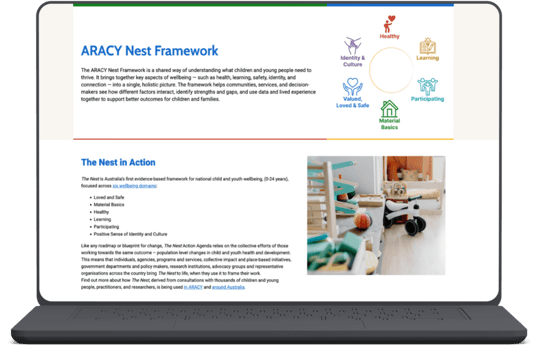
How do I use a Template Dashboard?
To use and edit a Seer Data Template dashboard, start by duplicating the template so you have your own copy. Once duplicated, you’re free to edit the dashboard and make it your own.
You can update and change:
- Text and narrative
- Images and media
- Charts and Insights
- Colours and fonts
- Layout and page structure
- Number of pages
- Sections (add, remove, or reorder)
- Embedded video or other media
- Forms to collect information
And more, as your story evolves.
You can start simple and continue building over time as new data, insights, or stories emerge.
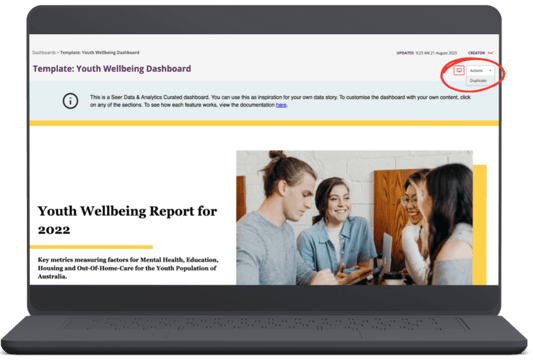
Duplicate can be found under Actions in the top right of a template dashboard.
Learn how to duplicate a dashboard in this article
Changing text, images, and Insights (charts) on your Dashboard
You can edit any part of your dashboard. Each template dashboard is laid out in a suggested structure, but it’s designed to be flexible. You can add, move, or remove content to suit your purpose and shape the story you want to tell.
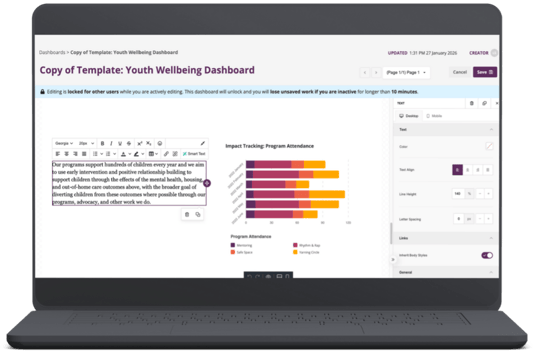
To begin editing, click Edit on your dashboard.
Editing text
To update text, click directly into any title or text area. You can type new content or paste text in, and edit both headings and body text in place. You can change the font family using the overall page settings, and update font colours to align with your style guide.
For accessibility, use heading levels (H1, H2, H3, H4) in a logical order. Start with H1 for the main heading, then use H2, H3, and H4 for sub-sections. This helps screen readers and assistive technologies understand the structure of your content.
Editing images
To change an image, click on the image you want to update. You can then upload a new image to replace it.
If your image is already available online, you don’t need to upload it again. Copy the image’s web address (URL) by right-clicking on the image and selecting 'Copy image address' (or similar), then paste it into the Image URL field to insert the image.
Editing charts and Insights
To change a chart, click on the chart you’d like to update. Paste in the web address (URL) of the Insight you want to display, and the dashboard will update to show the new data. Dashboards are designed to be easy to update, so you can refine your content over time as your data, insights, or story evolve.
Learn how to embed an insight in this article
Add or duplicate sections or rows of content
You can duplicate existing sections or layouts from the template dashboard if you have more Insights to add or want more space for storytelling. You can also add new rows and columns and drag content into place to create your own layouts.
Read more in our Knowledge Centre article, Working with Dashboard Content
Managing, adding and editing pages to your Dashboard
Working with Dashboard pages
Dashboards can include one or more pages. Pages help you organise content, structure longer stories, or separate different themes, audiences, or sections of data. Each page can contain its own layout, text, images, and Insights.
Editing a page
To edit a page, make sure your dashboard is in Edit mode. From the dropdown menu in the top-right of the page, select Edit different page, then choose the page you want to work on.
Adding a new page
From the same dropdown menu, you can:
- Duplicate the current page to start from an existing layout, or
- Create a new page to begin with a blank canvas and add your own content.
This makes it easy to extend a dashboard while keeping layouts consistent.
Removing pages
If a page is no longer needed, it can be removed from the dashboard. Removing a page does not affect the data or Insights elsewhere in the platform — it only removes that page from the dashboard.
You can remove a page from the same dropdown menu by selecting Delete page.
Learn more about Dashboard pages
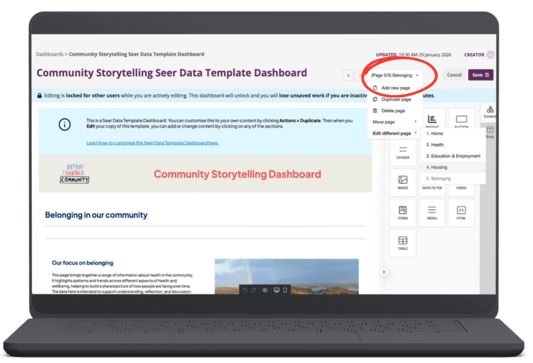
Pages actions can be found in the dropdown menu at the upper right when in Edit mode.
Share your Dashboard and tell the story to the world
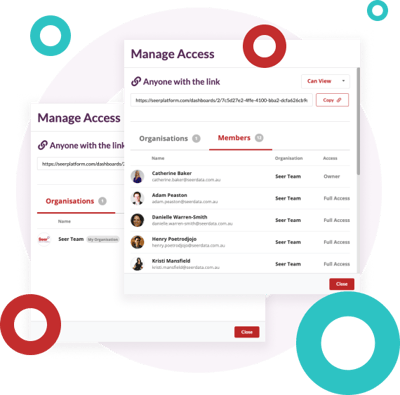
A shared Dashboard is one where access has been provided to it by the Dashboard owner.
Set different levels of access for your Dashboard:
Public Link
This allows anyone with the Public Link to view the Dashboard without needing to be a Seer Platform user.
Read Only
This allows a Seer Platform user to be able to view the Dashboard in read only mode.
Full Access
This allows a Seer Platform user to view and edit a Dashboard.