
What is dynamic time category selection?
Dynamic time category selection lets you choose time-based data for an Insight in a flexible way, rather than selecting fixed categories one by one.
This feature is available for supported Time Variables, including:
-
Year
-
Date
-
Year Month
-
Year Quarter
Ways to select time categories
When building an Insight, you have three options for selecting time categories:
1. Select individual categories
Choose specific time categories manually.
For example:
-
Selecting individual years such as 2019, 2020, and 2021
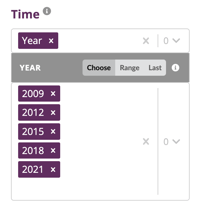
This option is useful when you want a fixed set of time periods.
2. Range
Define a From and/or To range.
For example:
-
From 2015 to 2021
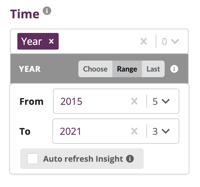
All data between (and including) the selected values will be shown.
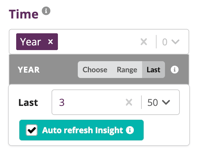
3. Last
Select a rolling window of the most recent time periods.
For example:
-
Last 3 years
- Last 12 months
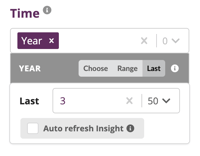
This option automatically adjusts as new time periods become available.
What are auto-refreshing Insights?
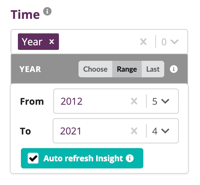
Auto-refreshing Insights automatically update when new data is added for future time periods.
When you use the Range or Last options, you can enable auto-refreshing by selecting the Auto refresh Insight checkbox.
Once enabled:
-
The Insight will update automatically as new data becomes available
-
No manual edits are required to include new time categories
⚠️ Auto-refreshing only works if Time Variables are formatted correctly
Time Categories must follow the platform’s accepted formats in order for auto-refreshing Insights to function as expected.
For more detail, see the article:
➡️How do my variable names impact other features in the platform?
Why this matters
Dynamic time selection and auto-refreshing Insights reduce manual upkeep and help ensure your Insights always reflect the most current data. This is especially valuable for ongoing reporting, dashboards, and regularly updated datasets.
-
Range: Define a "From" and/or "To" range.
-
Last: Pick the most recent "n" categories.
What are Auto Refreshing Insights?
When using the "Range" or "Last" options for selecting categories, you can enable the "Auto refresh Insight" feature by checking the box. Once enabled, your Insights will automatically update whenever new data becomes available.